
How to Sync Obsidian for Free — No 24/7 Server, No Sync Conflicts | PC & iOS
- 07/09/2026
Description
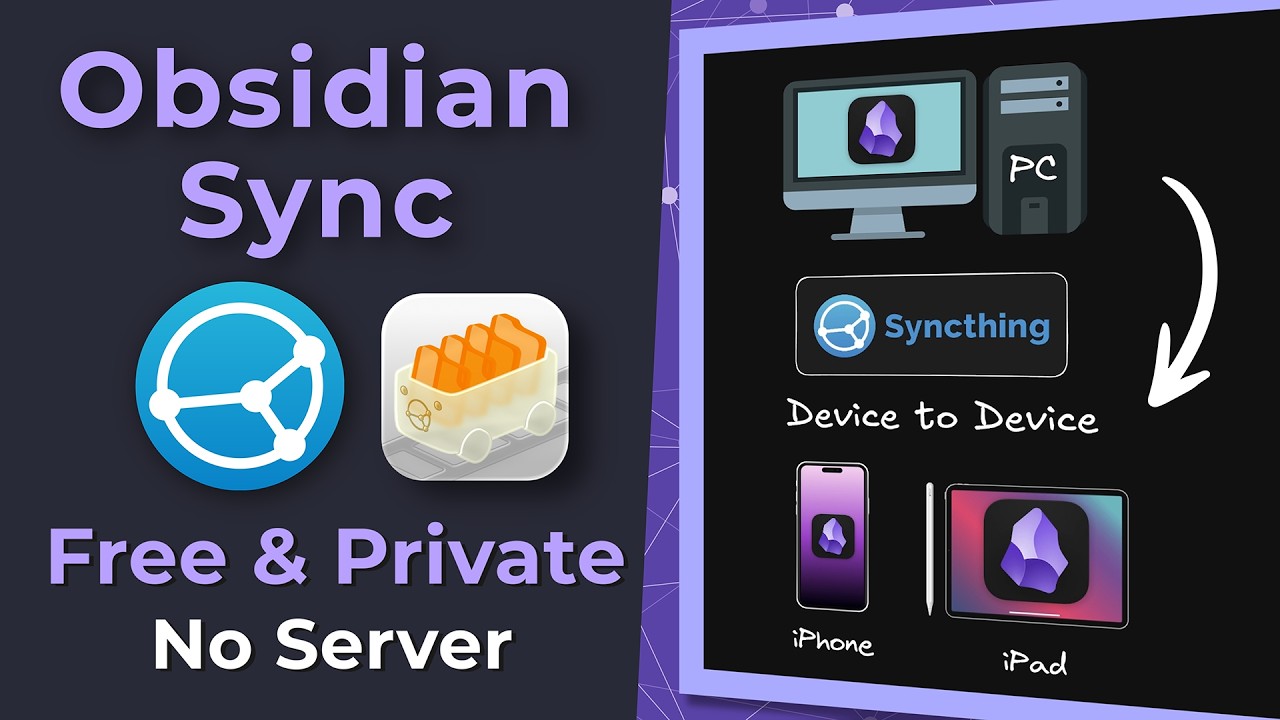
This video demonstrates how to set up free, private, and real-time synchronization for an Obsidian vault across Windows PCs and iOS devices (iPad/iPhone) using SyncThing. It specifically focuses on simplifying the process with GUI wrappers like SyncTracer (Windows) and SyncTrain (iOS) and introduces a robust method for preventing sync conflicts using a shared `.stignore` file.
Best Ideas
- Leveraging GUI Wrappers for SyncThing: Using SyncTracer for Windows and SyncTrain for iOS significantly simplifies the setup and management of SyncThing, making it accessible even for users unfamiliar with command-line interfaces.
- The `.stignore-shared` Conflict Resolution Method: Creating a central `.stignore-shared` file and including it in each device’s `.stignore` ensures consistent exclusion rules across all syncing vaults, effectively preventing common sync conflicts without manual intervention.
- “Send Only” Initial Sync for iOS Devices: Configuring the PC vault as “send only” for the initial synchronization to iOS devices ensures that the primary vault’s settings are replicated exactly, preventing stale or conflicting settings from the mobile device from overwriting the main setup.
- Existing Folder Selection on iOS: When setting up the vault on iOS, the video emphasizes selecting the *existing* (empty) Obsidian vault folder, ensuring SyncThing populates the correct location.
- IP Address Specificity for Remote Devices: While dynamic addressing works, manually entering the specific IP address and port (e.g., `10.1.1.187:22000`) for remote devices can enhance connection reliability, especially in specific network configurations.
- File Versioning for Safety: Recommending simple or staggered file versioning (e.g., 5 versions for 7 days) provides a safety net against accidental deletions or changes, allowing recovery of previous file states.
- Auditing with Claudian Command: The mention of a Claudian command to audit and generate the `.stignore-shared` file highlights the potential for automation and intelligent management of exclusion rules, though this is presented as a premium feature for members.
Tools and Resources
- Obsidian: The primary knowledge base application being synced.
- SyncThing: The core open-source, continuous file synchronization program.
- SyncTracer V2 (Windows): A GUI wrapper application that bundles and manages SyncThing on Windows, available on GitHub.
- SyncTrain (iOS): An iOS application that provides a user-friendly interface for SyncThing on iPhones and iPads, available on the App Store.
- SyncThing.net: The official website for SyncThing, for general information and traditional downloads.
- VirusTotal.com: A website for scanning suspicious files and malware in downloaded executables (e.g., SyncTracer setup).
- `.stignore-shared` file: A user-created file used in conjunction with `.stignore` for universal conflict resolution.
- Claudian plugin / AI tools: Mentioned for automating the auditing and creation of the `.stignore-shared` file (membership-based).
- Proxmox Homelab / Linux server: Mentioned as the presenter’s always-on device for remote sync, although the video aims to show how to sync without a dedicated 24/7 server.
- Tailscale: Mentioned as part of a previous, more advanced remote sync setup.
Key Learning Points
- Secure & Free Sync: SyncThing offers a completely free, private, and end-to-end encrypted way to sync Obsidian vaults between devices without relying on third-party cloud services or a constantly running server.
- Conflict Prevention is Key: Implementing the `.stignore-shared` file is crucial for preventing common sync conflicts that arise from temporary or device-specific files (like session files) within Obsidian vaults.
- Strategic Sync Configuration: Initial “send-only” synchronization from your primary device (PC) to new mobile devices is a critical step to ensure consistent settings and avoid configuration headaches.
- GUI Tools Simplify SyncThing: For users who prefer a graphical interface, SyncTracer (Windows) and SyncTrain (iOS) make the powerful SyncThing engine much easier to configure and manage.
- Device Pairing via QR Code: SyncThing simplifies connecting new devices by allowing direct scanning of QR codes generated by other SyncThing instances.
- Regular Obsidian Re-open: After making significant SyncThing configuration changes or during initial syncs, force-closing and re-opening Obsidian on mobile devices is often necessary for it to re-index and reflect the updated vault state.
Members Perks
Navigation
No series found