
Stop Copying Files Into Obsidian | Folder Bridge Plugin
- 01/04/2026
Description
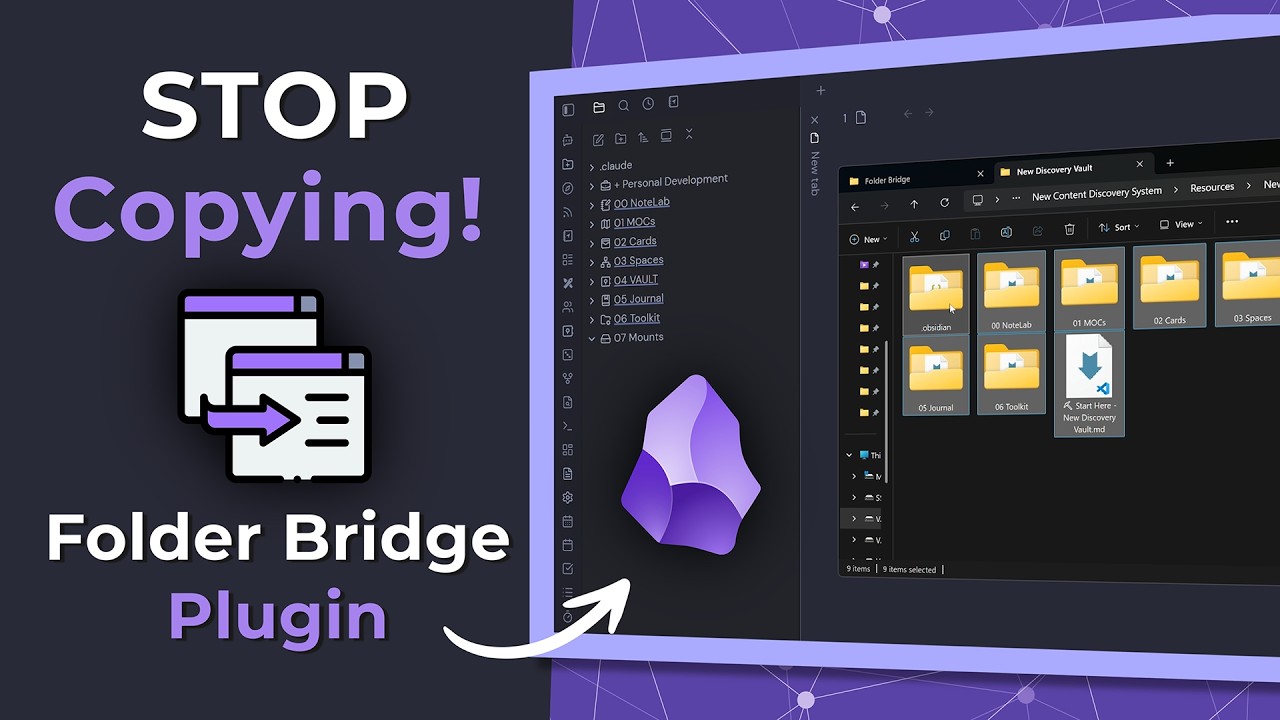
This video introduces the Obsidian Folder Bridge plugin, which allows users to virtually mount external folders, hidden system files, media libraries, or remote sync folders directly into their Obsidian vault sidebar. This eliminates the need to copy or duplicate files, keeping them in their original location while making them fully accessible and searchable within Obsidian’s interface.
Best Ideas
1. Virtual Mount External Folders: Seamlessly integrate any folder outside your Obsidian vault, including other vaults, system directories, or remote sync locations, without moving or duplicating files.
2. Access Hidden System/Dot Folders: Reveal and manage typically invisible folders like `.clored` (for AI tools), `.obsidian`, or sync-related `.st` folders directly within Obsidian, streamlining workflows for developers or advanced users.
3. Cross-Vault File Sharing: Mount a shared “remote sync” folder (e.g., from Google Drive) into multiple Obsidian vaults, allowing access to common files without setting up complex sync configurations for each vault or duplicating data.
4. Embed Media Libraries: Attach folders containing movies, music, or PDFs to preview and interact with media files directly inside Obsidian, turning your vault into a versatile media reference library.
5. Enhanced Organization & Sync Management: Group multiple virtual mounts into a single parent folder within Obsidian, then easily add that parent folder to your `.stignore` or Obsidian Sync ignore list to prevent unwanted syncing of entire mounted directories.
6. Read-Only Mounts: Set specific mounted folders to read-only, preventing accidental modifications to crucial external files or preventing changes to shared resources.
7. Limit Scanned Files: For large mounted folders, advanced settings allow limiting the number of files scanned, helping to prevent latency issues and improve performance within Obsidian.
Tools and Resources
- Obsidian: The primary note-taking application.
- Folder Bridge Plugin: The community plugin for virtually mounting external folders (the subject of the video).
- BRAT (Beta Reviewer’s Auto-update Tool) Plugin: Used to install Folder Bridge while it’s pending official review in the community plugins directory.
- GitHub URL: Required for installing plugins via BRAT (e.g., `https://github.com/someuser/folder-bridge-repo`).
- VS Code: Mentioned as an alternative external editor for files in hidden folders like `.clored` before Folder Bridge.
- Obsidian Sync / SyncThing: External synchronization services that require careful configuration with Folder Bridge using ignore lists.
- `.stignore` file (for SyncThing) / Sync Ignore List (for Obsidian Sync): A crucial mechanism to prevent sync services from attempting to upload the entire content of mounted virtual folders.
- Google Drive: Used as an example for hosting a “remote sync” folder.
- Hard Drive Icon (for folder): Visual cue for organizing mount points within Obsidian.
Key Learning Points
- Extend Obsidian’s Scope: Obsidian is typically sandboxed to its vault, but Folder Bridge allows you to break this barrier, integrating files and folders from anywhere on your system.
- Prevent Duplication & Simplify File Management: The plugin eliminates the need to copy files into your vault or create complex symlinks, saving disk space and ensuring files remain in their original, organized locations.
- Importance of Sync Ignore Lists: When using sync services like Obsidian Sync or SyncThing, it’s critical to add the virtual folder names (or their parent folder) to the sync ignore list to avoid unintended uploads of large external content.
- Installing Pending Community Plugins: Learn the process of using the BRAT plugin to install community plugins that are still awaiting official review and inclusion in the main directory.
- Obsidian’s Native Rendering Limitations: Be aware that Obsidian can only natively render Markdown, PDF, images, audio, and video files; other file types (e.g., Word, Excel, code files) will not display their content directly in the file explorer.
- Organize Mount Points: Creating a dedicated parent folder for your mounts and assigning a distinct icon can significantly improve the tidiness and manageability of your Obsidian sidebar.